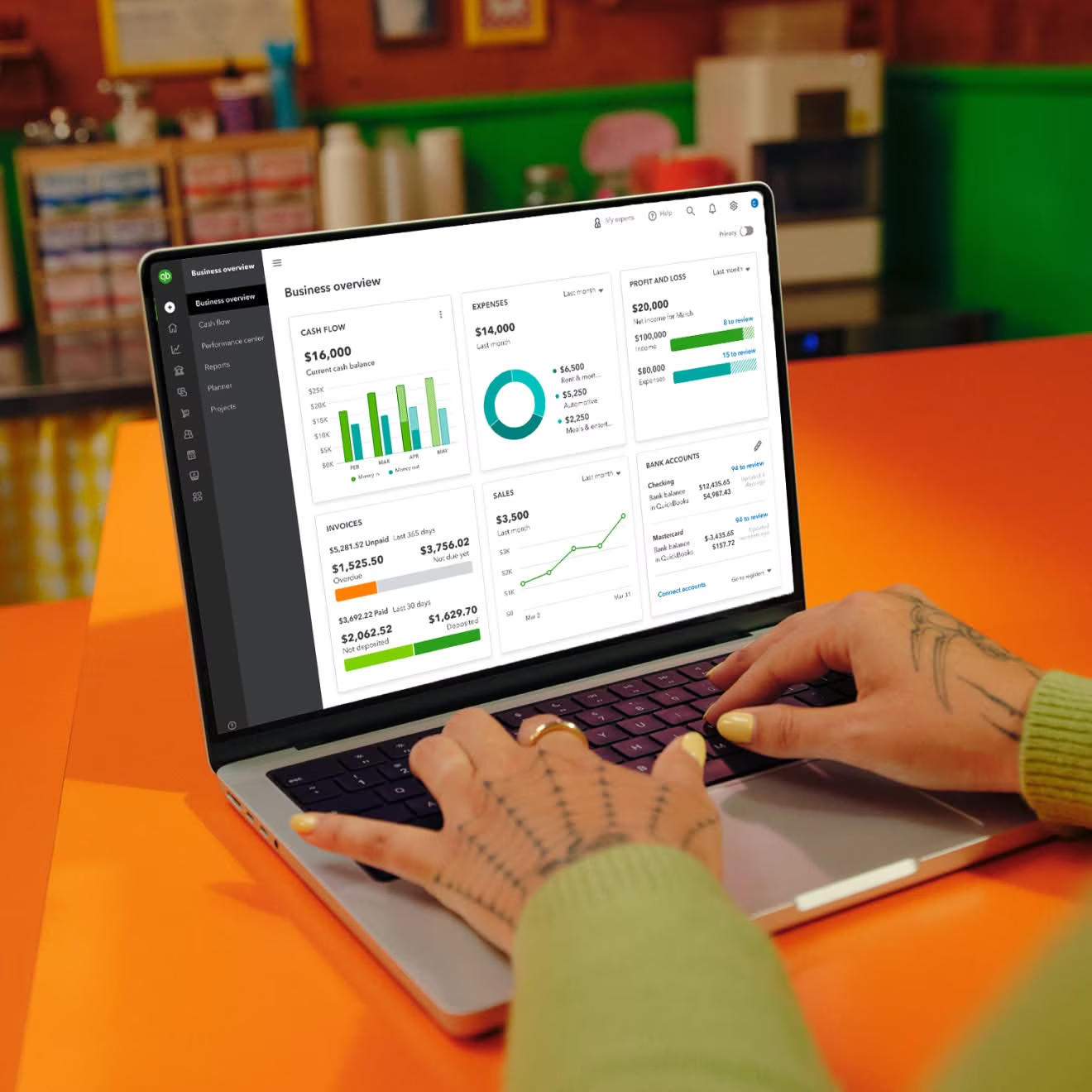
In this complete guide we will show you exactly how to install QuickBooks Desktop on Windows 11 step by step — from downloading the software all the way to activating your license key.
If you just purchased a genuine QuickBooks Desktop license and are ready to get started on Windows 11, you are in the right place. This complete guide walks you through everything you need to know to install QuickBooks Desktop on Windows 11 quickly and correctly — from checking your system requirements all the way to activating your license key.
Whether you are installing QuickBooks Desktop Pro Plus, Premier Plus, or Enterprise, the installation process is the same. Follow these steps carefully and you will have QuickBooks Desktop up and running on your Windows 11 computer in under 30 minutes.
Is QuickBooks Desktop Compatible With Windows 11?
Yes — QuickBooks Desktop is fully compatible with Windows 11. Intuit officially supports install QuickBooks Desktop on Windows 11 64-bit for all current versions including QuickBooks Desktop Pro Plus, Premier Plus, and Enterprise.
If you are running an older version of QuickBooks Desktop such as 2019 or 2020, these versions may experience limited compatibility with Windows 11 since they have reached End of Life status with Intuit. For the best Windows 11 experience we recommend using QuickBooks Desktop Pro Plus 2023, Pro Plus 2024, Premier Plus 2023, Premier Plus 2024, or Enterprise 2024.
System Requirements for QuickBooks Desktop on Windows 11
Before you begin the installation make sure your computer meets these minimum system requirements:
Operating System: Windows 11 64-bit or Windows 10 64-bit
Processor: 2.4 GHz minimum — Intel Core i5 or AMD equivalent recommended
RAM: 8 GB minimum — 16 GB recommended for best performance
Storage: 2.5 GB of available disk space minimum — additional space required for company files
Screen Resolution: 1280 x 1024 or higher
Internet Connection: Required for license activation and automatic updates
If your computer meets all these requirements you are ready to begin the installation process.
Step by Step Guide to Install QuickBooks Desktop on Windows 11
Step 1 — Check Your Email for License Key and Download Link
After purchasing your genuine QuickBooks license from AllGoodQuick your license key and download link will be sent to your email within minutes of purchase.
Open your email inbox and look for an email from AllGoodQuick containing:
- Your unique QuickBooks Desktop license key
- Your product number
- Your official download link
Keep this email open — you will need your license key and product number during the activation step.
Step 2 — Download and install QuickBooks Desktop on Windows 11
Click the download link in your email. This will take you to the official Intuit download page where you can download the QuickBooks Desktop installer file.
Alternatively you can download QuickBooks Desktop directly from the official Intuit website at quickbooks.intuit.com/downloads.
Make sure you download the correct version that matches your license key. For example if you purchased QuickBooks Premier Plus 2024 make sure you download the Premier Plus 2024 installer — not Pro Plus or Enterprise.
The installer file is approximately 500 MB to 1 GB in size so the download may take a few minutes depending on your internet speed.
Step 3 — Run the QuickBooks Desktop Installer
Once the download is complete locate the installer file in your Downloads folder. The file will be named something like:
QuickBooks_Desktop_Premier_Plus_2024.exe
Right click the installer file and select “Run as administrator” — this is important on Windows 11 to ensure the installation has the correct permissions to complete successfully.
A User Account Control prompt may appear asking if you want to allow the app to make changes to your device. Click Yes to continue.
Step 4 — Follow the Installation Wizard
The QuickBooks installation wizard will open. Follow these steps inside the wizard:
Accept the License Agreement — Read and accept the Intuit software license agreement to continue.
Choose Installation Type — Select “Express” for a standard single user installation or “Custom and Network” if you are installing QuickBooks Desktop for multiple users on a network.
Select Installation Location — The default installation location is C:\Program Files\Intuit\QuickBooks — we recommend keeping the default location unless you have a specific reason to change it.
Click Install — The installation process will begin. This typically takes between 5 and 15 minutes depending on your computer speed.
Do not close the installer or turn off your computer during the installation process.
Step 5 — Activate Your QuickBooks Desktop License
Once the installation is complete QuickBooks Desktop will launch automatically and ask you to activate your license.
Click “Activate QuickBooks” and enter the following information from your AllGoodQuick email:
- License Number — Your unique 16-digit license key
- Product Number — Your product number
Click Next and QuickBooks will verify your license key with Intuit’s servers. Make sure your computer is connected to the internet during this step.
Once your license is verified you will see a confirmation message and QuickBooks Desktop will be fully activated and ready to use on your Windows 11 computer.
Step 6 — Set Up Your Company File
After activation QuickBooks will ask you to either open an existing company file or create a new one.
If you are a new QuickBooks user select “Create a new company” and follow the setup wizard to enter your business information including your company name, industry type, and fiscal year start date.
If you are migrating from an older version of QuickBooks Desktop select “Open or restore an existing company” and locate your existing company file to import all your historical data into the new installation.
Step 7 — Update QuickBooks Desktop
After setting up your company file it is important to install all available updates. Go to:
Help → Update QuickBooks Desktop → Update Now → Get Updates
This ensures you have the latest security patches, bug fixes, and feature updates installed from day one — keeping your financial data safe and your software running at peak performance on Windows 11.
Common QuickBooks Desktop Installation Issues on Windows 11
Issue 1 — Installation Freezes or Stops
If the installation freezes try these fixes:
- Temporarily disable your antivirus software during installation
- Right click the installer and select Run as Administrator
- Make sure you have enough free disk space — at least 5 GB recommended
- Restart your computer and try again
Issue 2 — License Key Not Accepted
If your license key is not being accepted:
- Double check you are entering the correct license key from your AllGoodQuick email
- Make sure there are no spaces or extra characters in the license key
- Verify you downloaded the correct QuickBooks version that matches your license
- Contact AllGoodQuick support for immediate assistance
Issue 3 — QuickBooks Desktop Runs Slowly on Windows 11
If QuickBooks Desktop runs slowly after installation:
- Make sure your computer has at least 8 GB of RAM
- Close other applications while running QuickBooks Desktop
- Move your company file to a local drive rather than a network drive
- Update your Windows 11 and QuickBooks Desktop to the latest versions
Why Buy Your QuickBooks Desktop License From AllGoodQuick?
AllGoodQuick delivers genuine verified QuickBooks licenses instantly to your email within minutes of purchase. Every license key is officially verified and unique — giving you complete peace of mind that your software is authentic and fully supported.
Whether you need QuickBooks Pro Plus, Premier Plus, Enterprise, or a lifetime license for older versions, AllGoodQuick has the right product for your business at the best price with instant digital delivery and no waiting.
Final Thoughts
Install QuickBooks on Windows 11 is a straightforward process that takes less than 30 minutes when you follow these steps correctly. Make sure your system meets the minimum requirements, download the correct version for your license, and activate using the license key from your AllGoodQuick email.
If you have not yet purchased your QuickBooks Desktop license visit AllGoodQuick today and get your genuine license key delivered to your inbox within minutes.